Buying a USB-C cable: match your Mac and data needs
Use actual Apple cable specifications and Mac model requirements to choose a charging replacement that also fits your SSD or display needs.
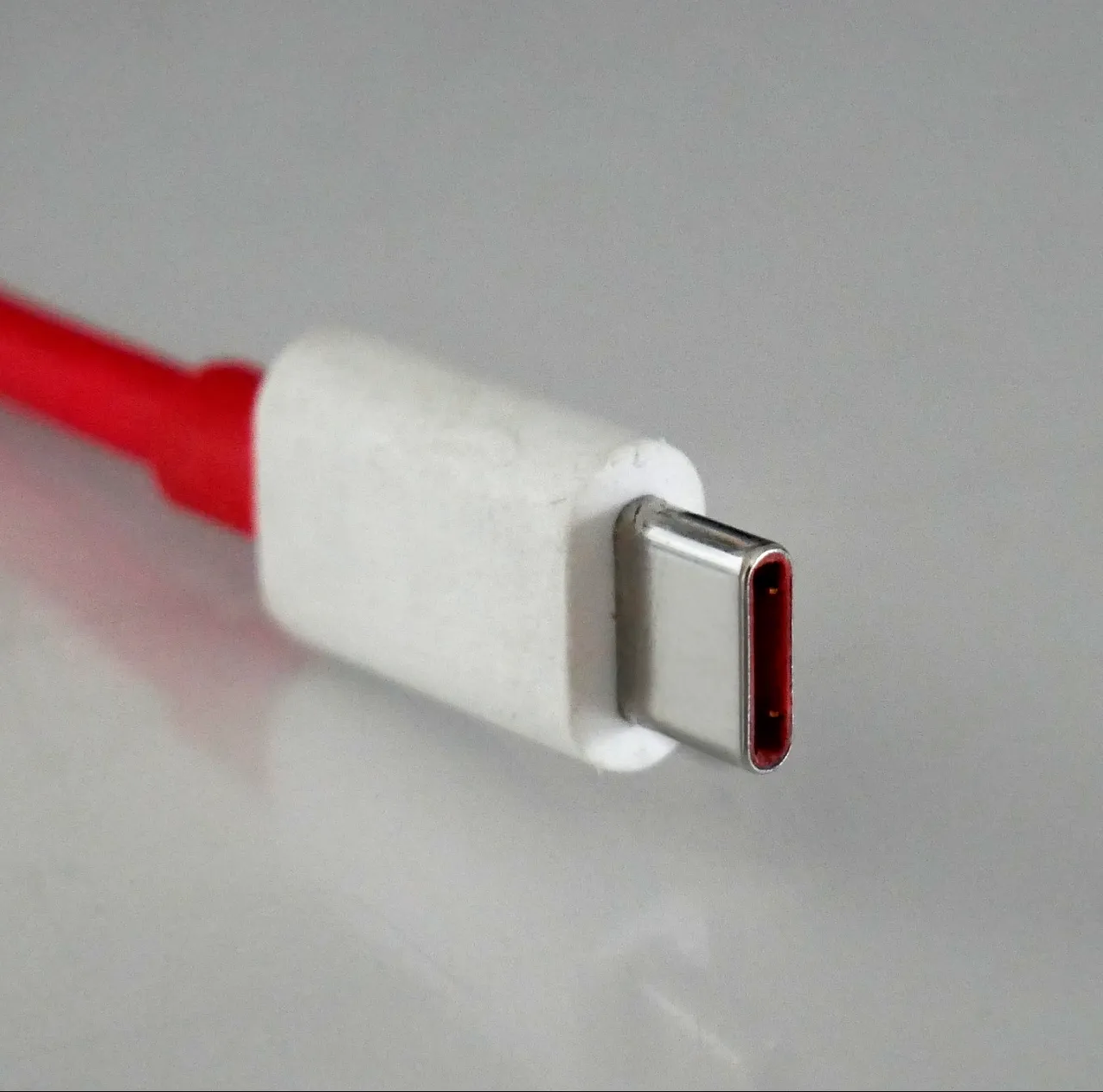
Decide what the replacement cable must do before comparing prices. A spare for charging a Mac is a different purchase from a cable that must also move files from an SSD or connect a display. The same connector shape does not settle those requirements.
A real 240W cable can still be the wrong data purchase
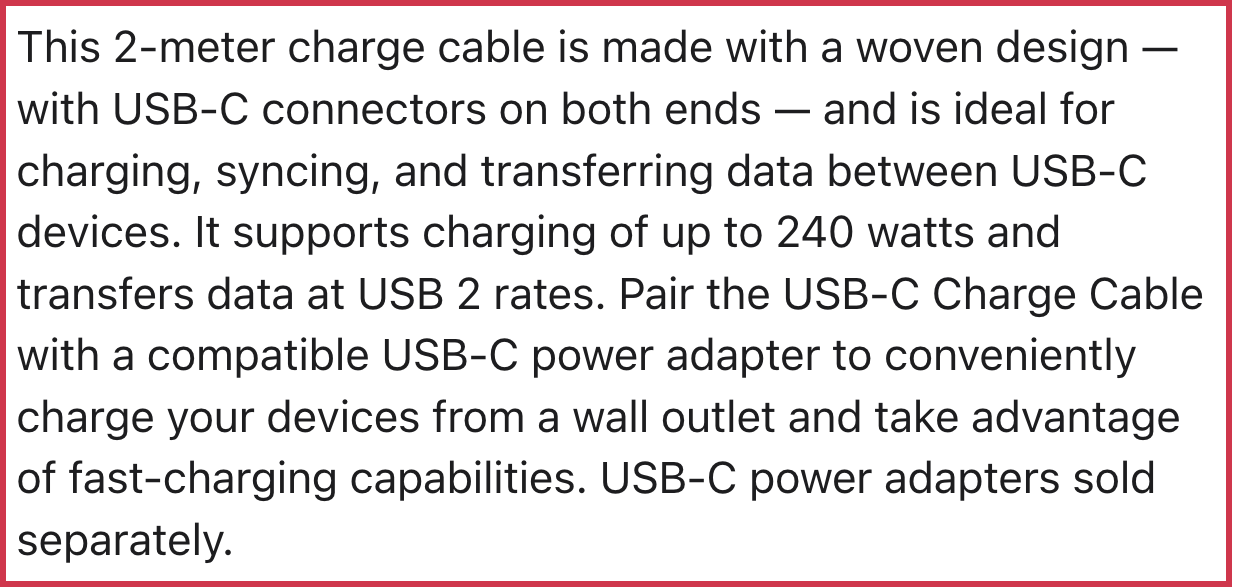
Apple’s current 240W USB-C Charge Cable, 2 m is a useful counterexample. Its product page states that it supports charging up to 240 watts and transfers data at USB 2 rates.
It may fit a supported charging task without being the fast-data replacement you intended to buy for an external SSD. Buying it for a larger watt number would not resolve that data requirement.
This example does not mean all 240W cables have USB 2 data rates. Check the exact product’s data specification. For a display or dock, also check explicit video support and the requirements of the connected ports. A charging wattage is not a promise about either task.
Your Mac model can change which cable to buy
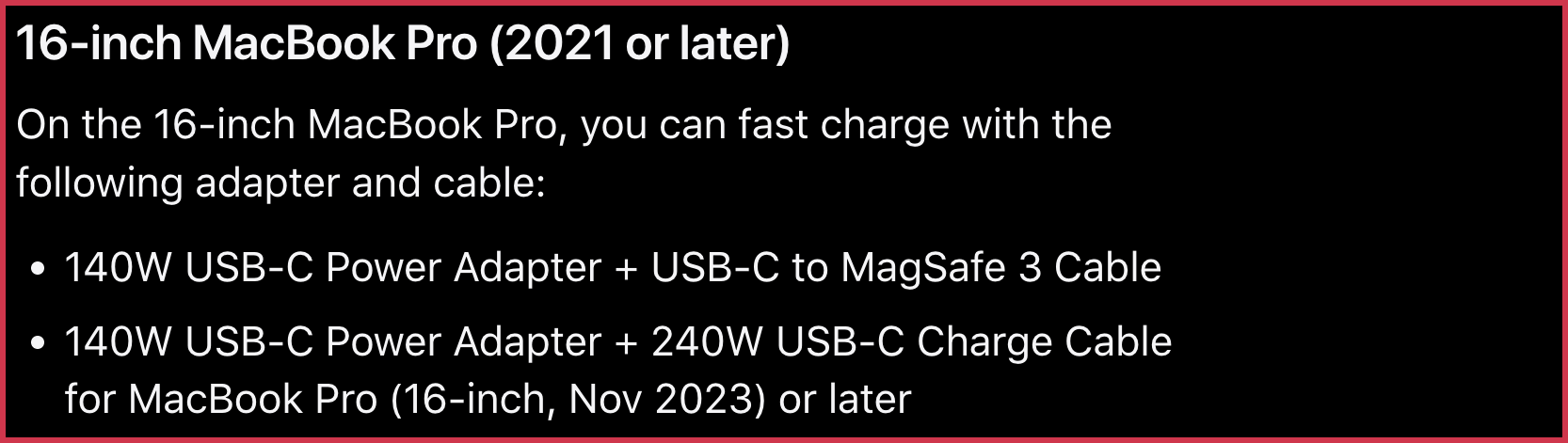
Apple’s fast-charge compatibility page distinguishes these routes for the 16-inch MacBook Pro:
| Exact model group | Listed adapter and cable route |
|---|---|
| 16-inch MacBook Pro, 2021 or later | 140W USB-C Power Adapter with a USB-C to MagSafe 3 Cable |
| 16-inch MacBook Pro, November 2023 or later | Also lists the 140W adapter with a 240W USB-C Charge Cable |
If you have a 2021 or early-2023 16-inch model, do not buy a 240W USB-C cable solely expecting the later model’s listed USB-C fast-charge route. Apple’s MagSafe 3 combination is the relevant listed option for that goal. Ordinary charging and that particular fast-charge route are different questions.
For a MacBook Air or 14-inch Pro, use that model’s own section rather than copying the 16-inch combinations. Apple lists different power-source combinations, including a 67W option limited to 13.6-inch Air models.
The adapter, cable and Mac must support the intended charging arrangement. A 96W adapter does not turn a 60W-rated cable into a 96W cable, and a cable marked 240W does not make a lower-power device draw 240W. Those ratings are capabilities, not measurements of your setup’s charging speed.
Read power and data markings as separate clues
Current USB-IF certification requirements use 60W or 240W power markings for USB-C-to-USB-C cables. They require separate data-rate markings for the relevant faster-data cables; USB 2 cables have an exception to that data-marking requirement.
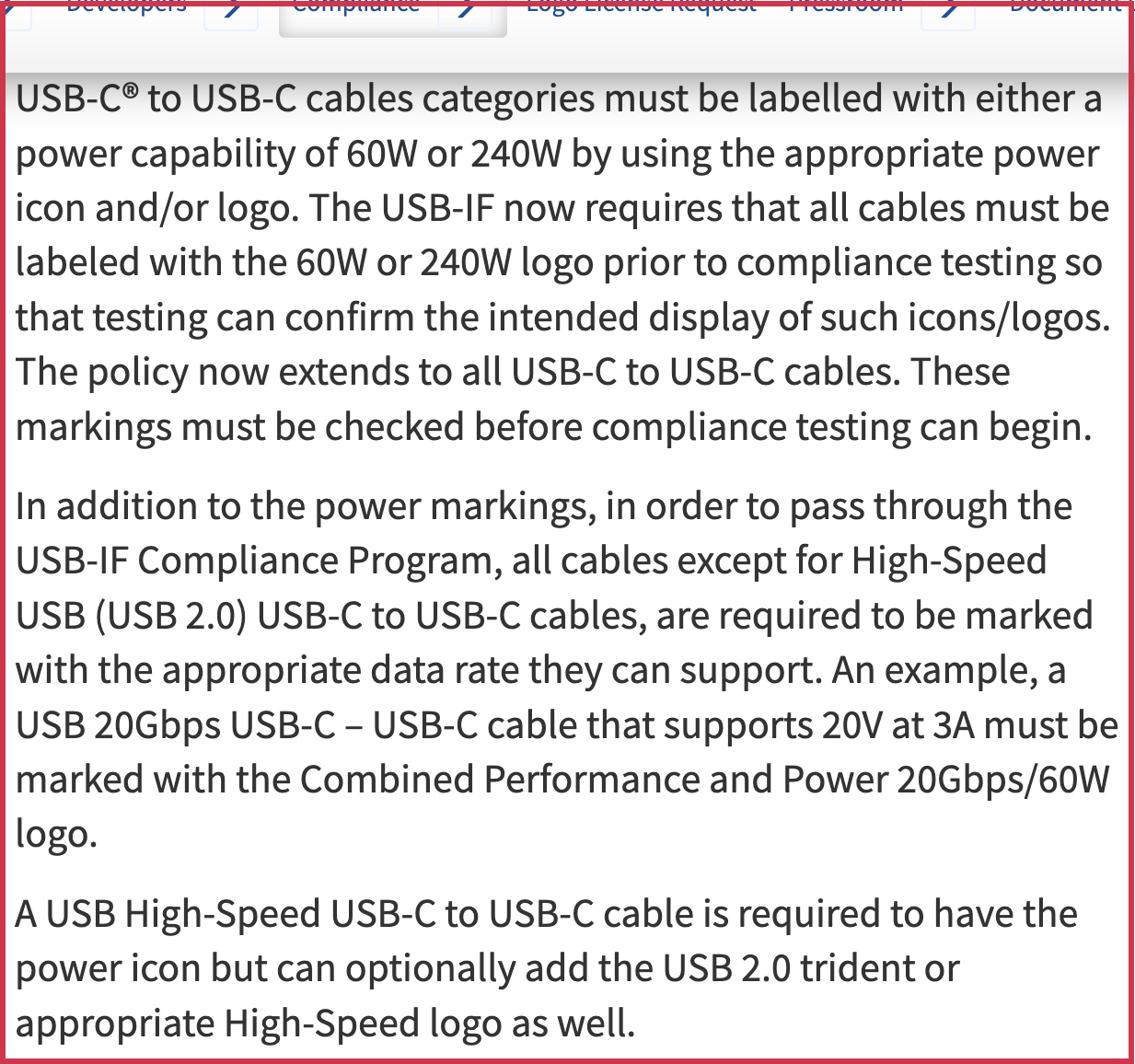
You may still have an older cable labeled 100W. USB-IF stopped new 100W cable certification in December 2021, replacing that certification category with 240W. That policy does not establish that an existing 100W cable is unsafe, unusable or needs replacing. Check whether its actual capabilities satisfy your current task.
A logo also does not upgrade the devices on either end. USB-IF specifically warns that a certified cable does not augment the connected products’ capabilities. Keep the laptop, adapter or dock, and cable in the comparison.
Turn your setup into a shopping specification
Use this sequence to decide what to keep and what to replace:
- Identify the exact Mac. Use the model-identification links on Apple’s fast-charge page, including the model year or introduction date where it changes the charging route.
- Check the adapter. Apple’s power-adapter guide explains reading its wattage label or checking System Information, Power, AC Charger Information. A multiport charger’s advertised total is not a substitute for verifying the intended port’s specification.
- Choose the job. For charging only, match the supported adapter/cable route. For an SSD, check the needed data standard and both devices’ support. For a display, check the manufacturer’s explicit cable, video and port requirements.
- Read the exact replacement listing. Verify the power capability, data capability, video support if needed, connector arrangement and length. If a required capability is not stated, verify it with the maker before buying.
For a charging-only spare, extra data capability may provide no benefit to the stated task. For one cable that also serves an SSD or display, paying attention only to watts can leave you buying twice. Neither conclusion requires an untested best-brand ranking or a promise of measured charging time.
Once the exact cable meets your needs, compare the same product across sellers. If one listing is at Best Buy, our Best Buy price-match guide explains the checks to make before asking for a lower price.
Sources
- USB-IF cable and connector certification requirements (checked )
- USB-IF USB Power Delivery (checked )
- USB-IF cable compliance updates (checked )
- Use a power adapter with your Mac (checked )
- Fast charge your MacBook Air or MacBook Pro (checked )
- Apple 240W USB-C Charge Cable, 2 m (checked )
- Cover photo: Santeri Viinamäki, CC BY-SA 4.0