PS5 external SSD or internal M.2: buy space you can use
Choose PS5 storage by what you want to play, then check USB ports, M.2 cooling and whether an existing PS4 drive already does the job.
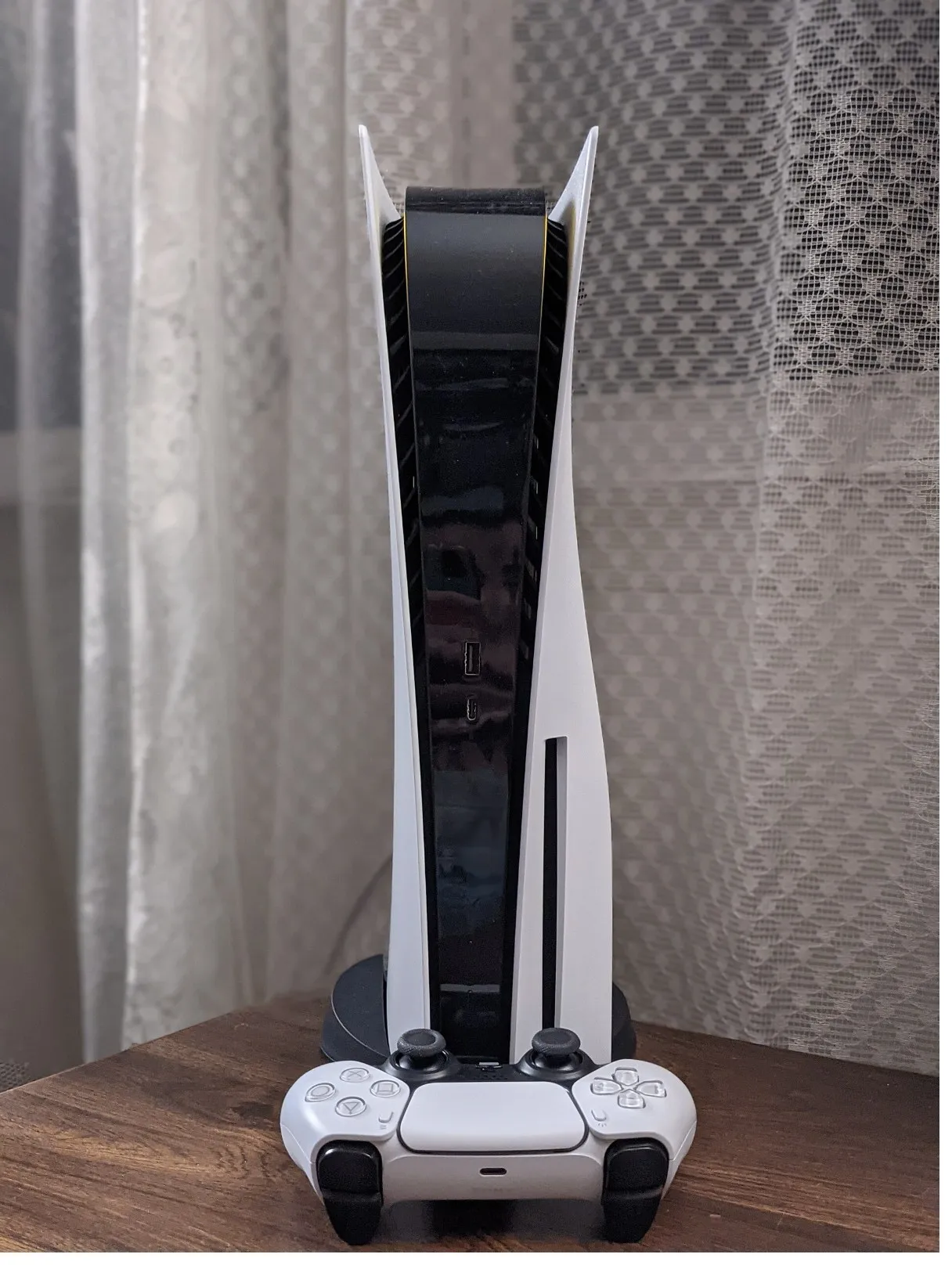
Before shopping, open Settings > Storage and decide what you want the extra space to do. Keeping an infrequently played PS5 game off the console is a different task from keeping it ready to launch. The SSD label alone does not tell you which task a drive can handle.
This guide compares Sony’s published storage requirements, checked October 26, 2026. It does not rank drives or report transfer-speed tests.
Buy for the games you want ready to play
| Your main need | Storage to consider | What you still have to do |
|---|---|---|
| Launch more PS5 games without moving them first | A compatible M.2 SSD installed in the console | Check the complete drive and cooling requirements before buying |
| Keep PS5 games available to copy back later | A supported USB extended storage drive | Copy a game back to playable storage before launching it |
| Play a PS4 library on your PS5 | A supported USB extended storage drive | Use a SuperSpeed USB port; an existing PS4 extended drive can be reused |
Sony’s USB storage instructions make the distinction explicit: PS5 games cannot launch directly from USB extended storage. This includes an external SSD. A faster USB drive does not change that rule. An installed, compatible M.2 SSD can launch both PS5 and PS4 games.
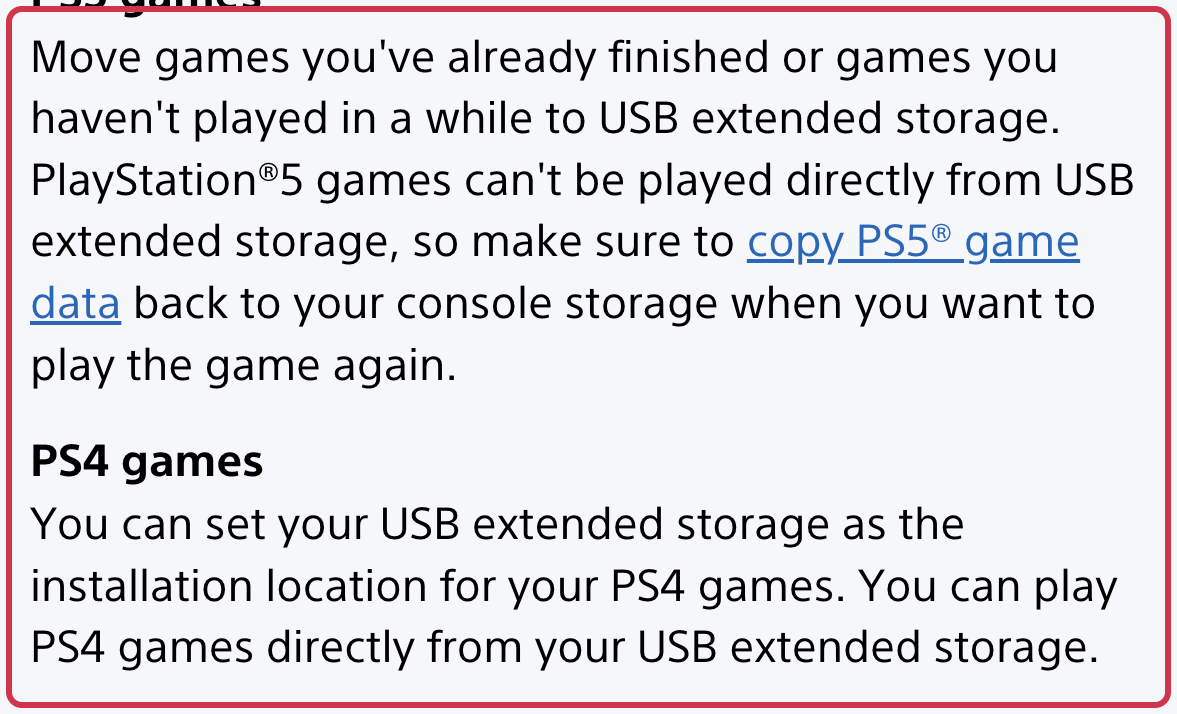
If your PS4 drive already holds your PS4 games, Sony says you can connect it to the PS5 without reformatting. Check its capacity and connection before replacing it. Buying a second drive would not automatically add a second active USB game library: the PS5 can use only one USB extended storage drive at a time.
Check the port before paying for a faster USB SSD
Sony requires SuperSpeed USB 5 Gbps or later and a capacity from 250 GB to 8 TB. Connect the drive directly; USB hubs are not supported. Sony does not guarantee that every drive meeting those broad requirements will work.
The connector shape is not enough. Sony’s model-specific port guide lists these connections:
| PS5 model group | Front ports | Back ports |
|---|---|---|
| CFI-1000 | One Hi-Speed USB-A; one 10 Gbps USB-C | Two 10 Gbps USB-A |
| CFI-2000 or CFI-7000 | One Hi-Speed USB-C; one 10 Gbps USB-C | Two 10 Gbps USB-A |
Use a SuperSpeed port for extended storage. On a CFI-2000 or CFI-7000 console, plugging into a front USB-C port does not by itself establish that you picked the right one. Check the diagram for your model. PS VR2 also uses the front SuperSpeed USB-C port, so the rear SuperSpeed USB-A ports may be relevant to your setup.
A USB 3.2 Gen 2x2 enclosure advertised at 20 Gbps operates at 10 Gbps on the PS5, according to Sony. That is a connection limit, not a measured file-transfer rate. If PS5 use is your only reason for buying it, do not pay extra expecting a 20 Gbps console connection. The same drive could have a different use on another compatible device; this guide does not test that use.
An internal M.2 needs more than the right capacity
For directly playable PS5 expansion, compare the complete product listing with Sony’s M.2 requirements and installation guide. Sony specifies a PCIe Gen4 x4 NVMe M.2 SSD with Key M and 250 GB to 8 TB capacity. M.2 SATA drives are not supported.
The supported form factors are 2230, 2242, 2260, 2280 and 22110. Sony recommends a sequential read speed of at least 5,500 MB/s, but that number is not a promise that every game will perform identically to the console’s built-in SSD.
Effective cooling is required. Include the heatsink or other cooling structure when checking the fit: maximum width is 25 mm and maximum total thickness is 11.25 mm, with up to 8 mm above the board and 2.45 mm below it. If cooling parts are sold separately, include them in your shopping basket and check the combined dimensions. A bare drive’s dimensions do not establish the finished assembly’s fit.
Sony advises checking the vendor’s specifications and does not guarantee every third-party drive that appears to meet the requirements. Update the PS5 system software, then use the installation instructions for your actual CFI model group.
Decide what to keep before formatting
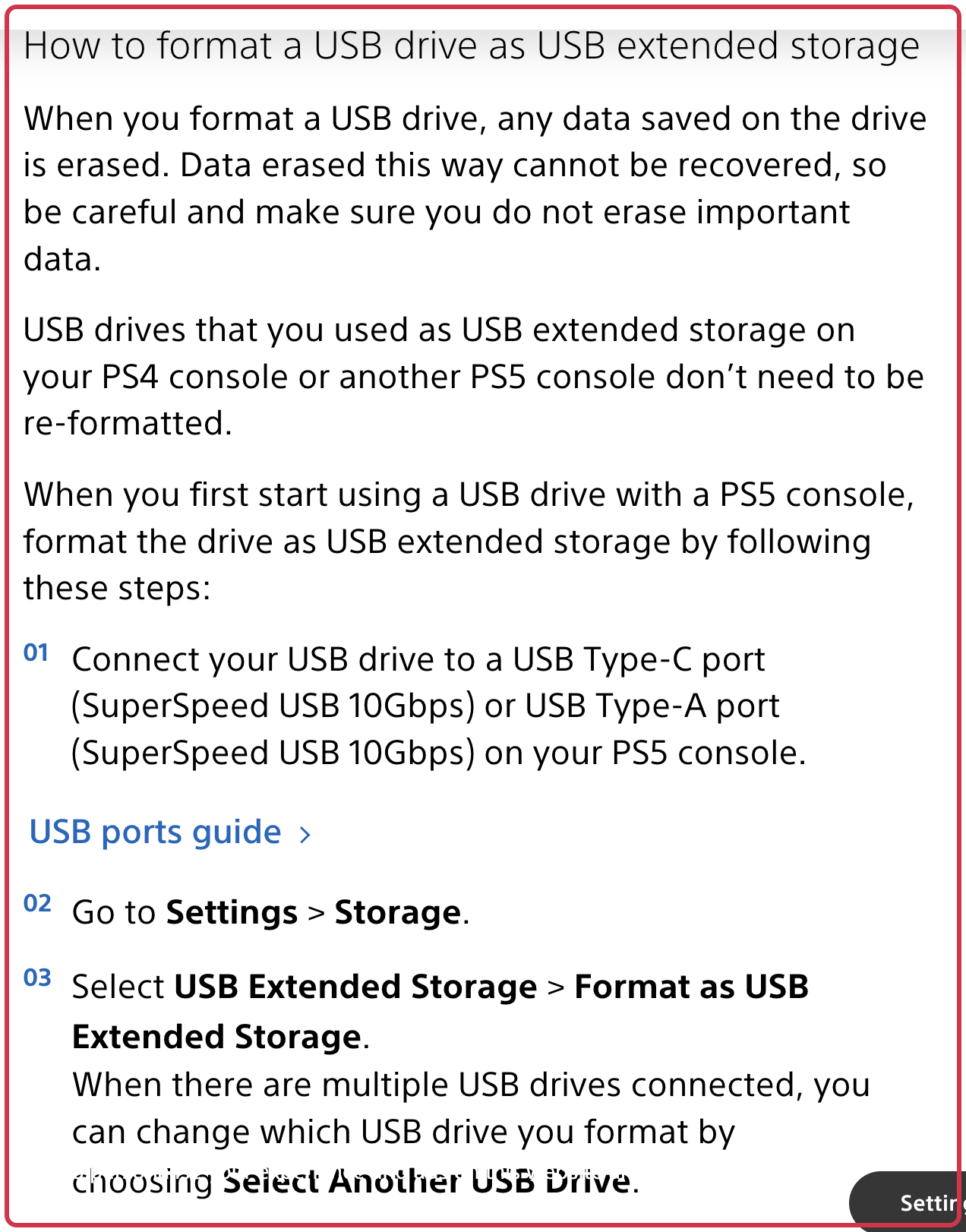
First-time formatting erases the drive’s existing data, whether you are preparing USB extended storage or a newly installed M.2 SSD. A PS4 drive already formatted as extended storage does not need that fresh format merely to connect to a PS5.
Extra game-installation space also does not replace a save-data backup. Sony’s storage-management guide separates game storage from saved data and describes PlayStation Plus cloud storage for PS5 saves.
If you already bought the wrong drive from Amazon, check the order’s return-by date before repurposing or formatting it. Our Amazon return-window guide explains where the standard window and product exceptions differ.
Sources
- USB extended storage on PS5 consoles (checked )
- How to add an M.2 SSD to a PS5 console (checked )
- USB ports guide for PS5 consoles (checked )
- How to manage PS5 console storage space (checked )
- Cover photo: Osh33m, CC BY-SA 4.0